
Getting started
Note: This guide assumes that you have already installed the Shared Boards app from the monday.com app marketplace and have an active subscription.
Step 1: Open the Shared Boards board view
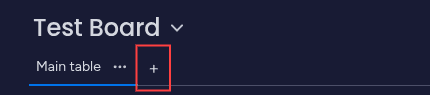
Once the app has been installed navigate to the board you would like to share. For this example we are going to open Test Board. Once the board is open, open a new board view by clicking on the 'add view' button.
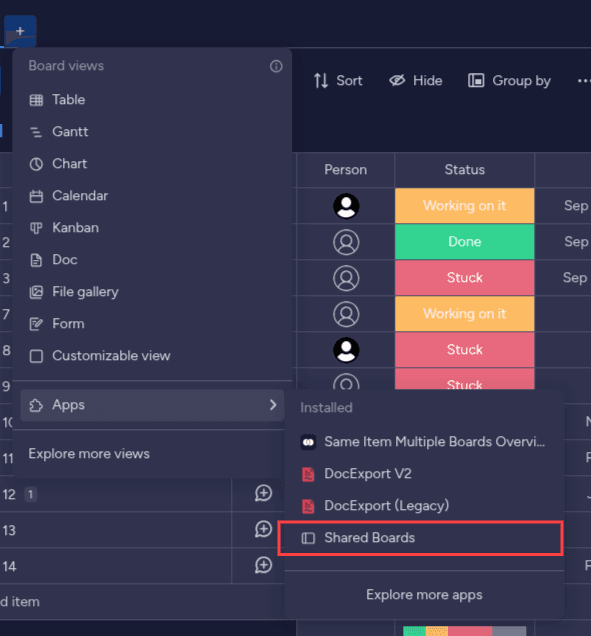
Under 'Apps', Shared Boards should appear as option under your installed apps. Click on it.
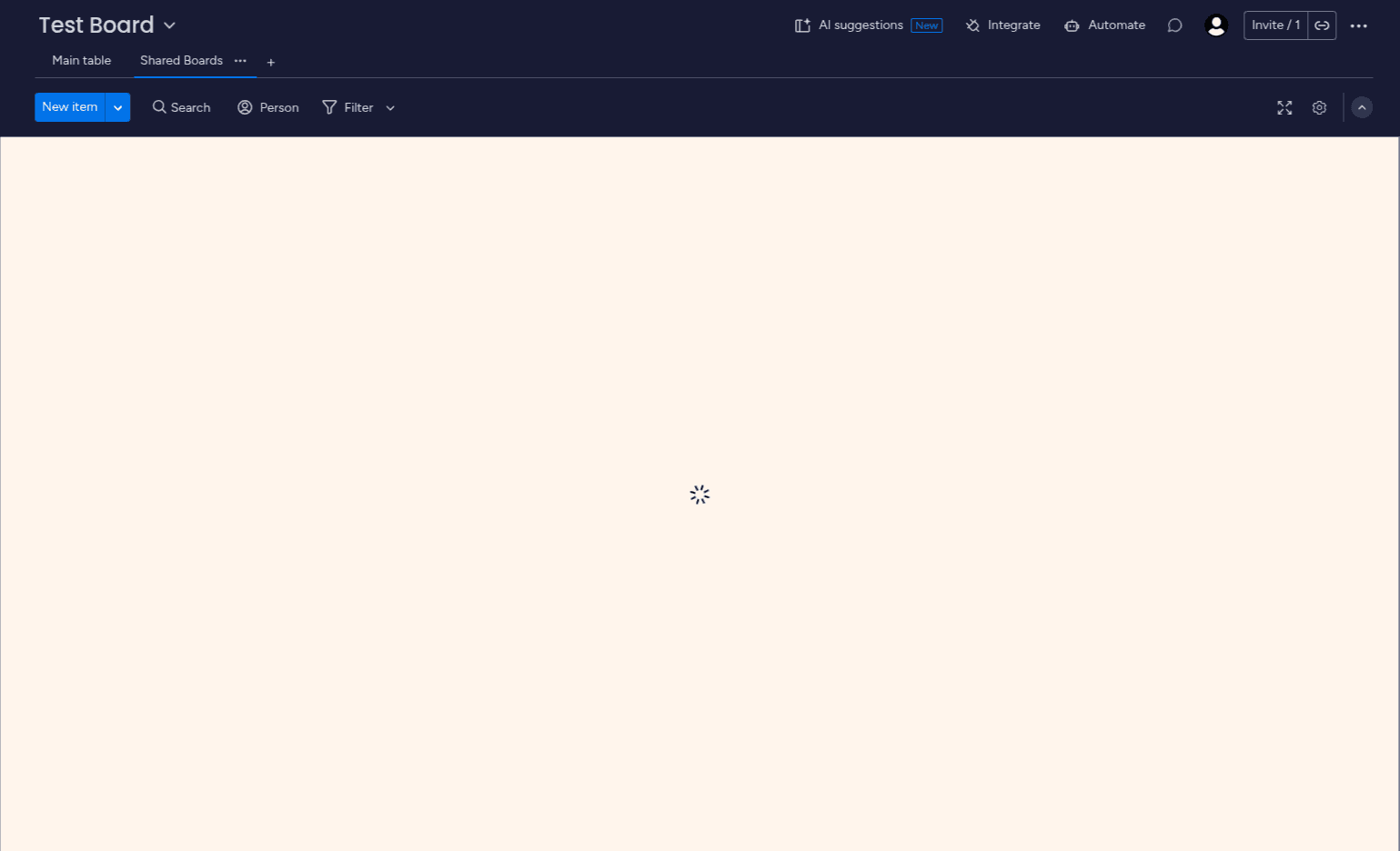
This should create open the app as board view.
Step 2: Authorize the Shared Boards app to view board data
The next step is give Shared Boards the necessary permissions to view your boards.
Note: no data beyond what is outlined in the privacy policy is stored. Put simply, we will not store your any data in your board beyond any meta-data needed for the app to work.
If this is the first time installing the app, you will be prompted to give authorization to the app. Click the 'Authorize' button.
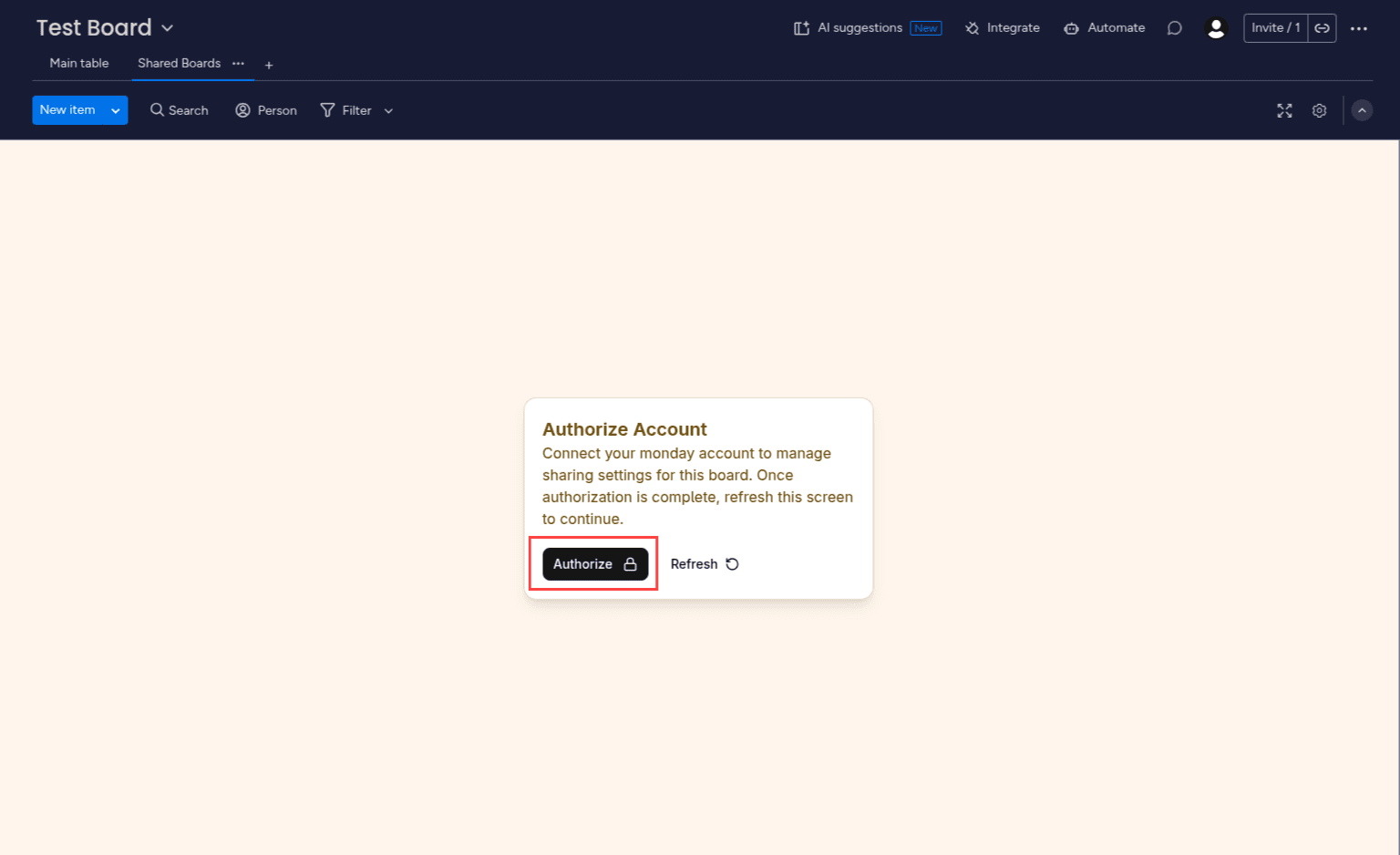
Once you do so, you will be redirected to our authorization page.
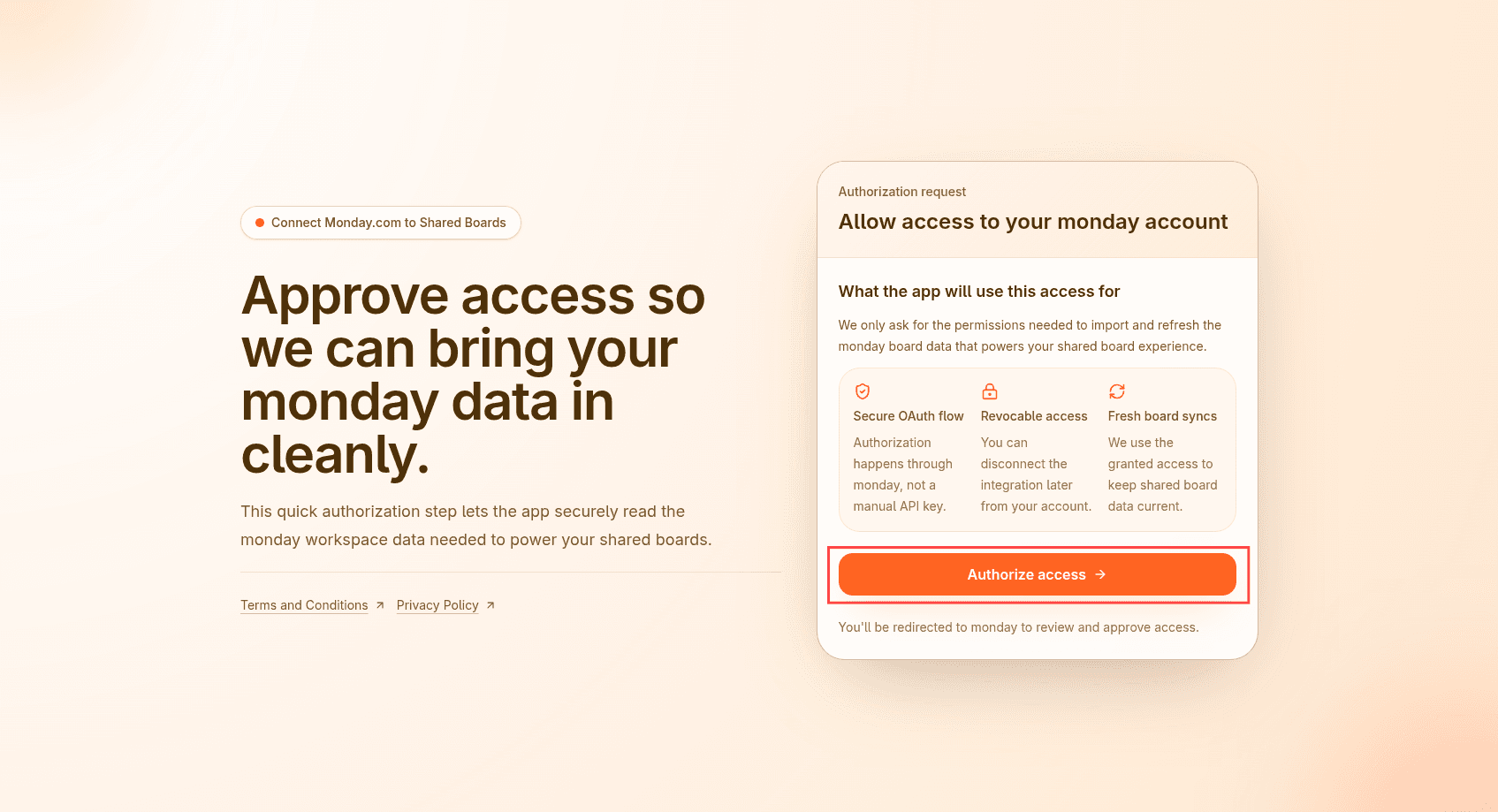
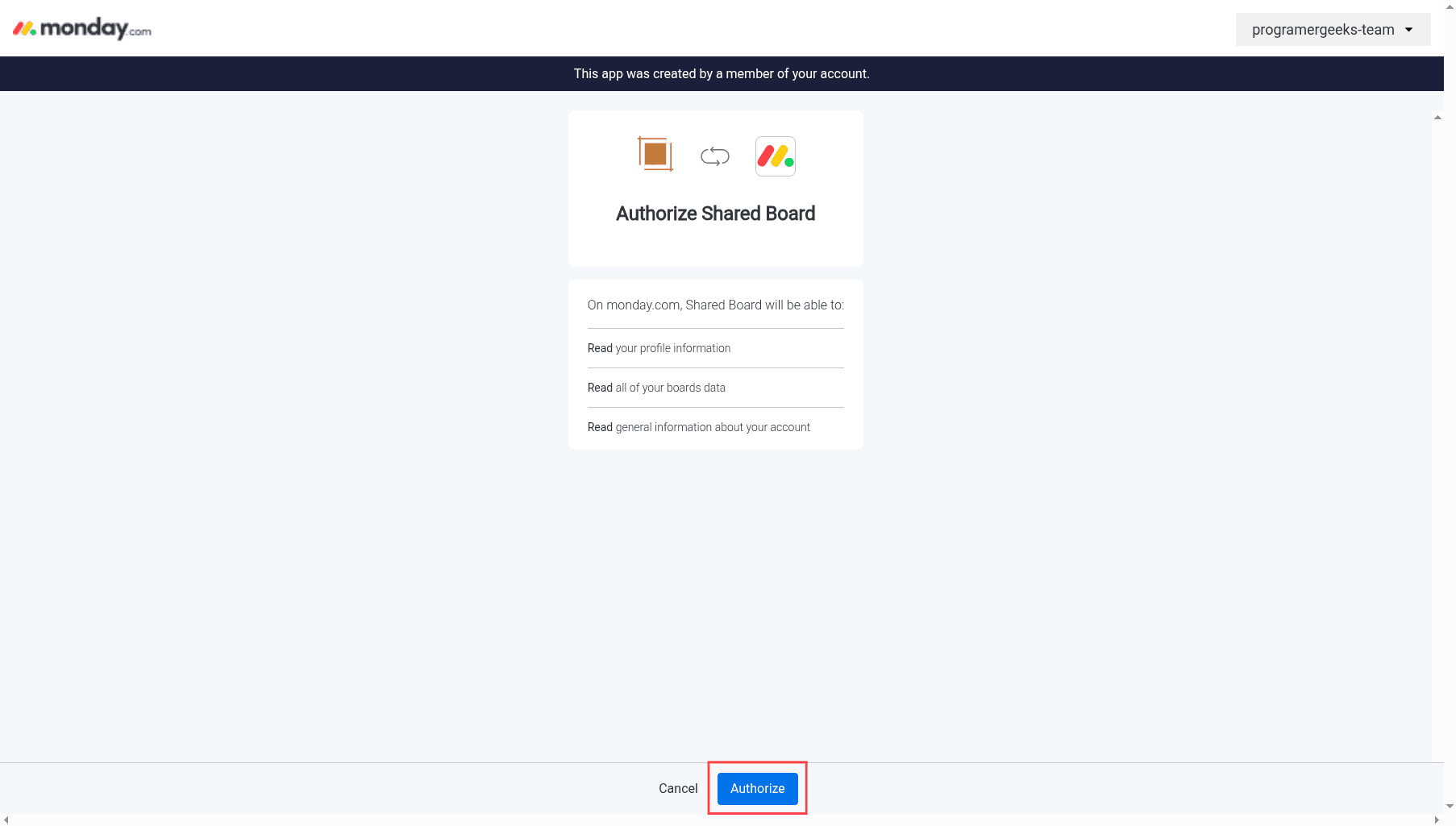
Once on this page, click on the 'Authorize access' button. This will take you Monday's authorization page. Click on the authorize button.
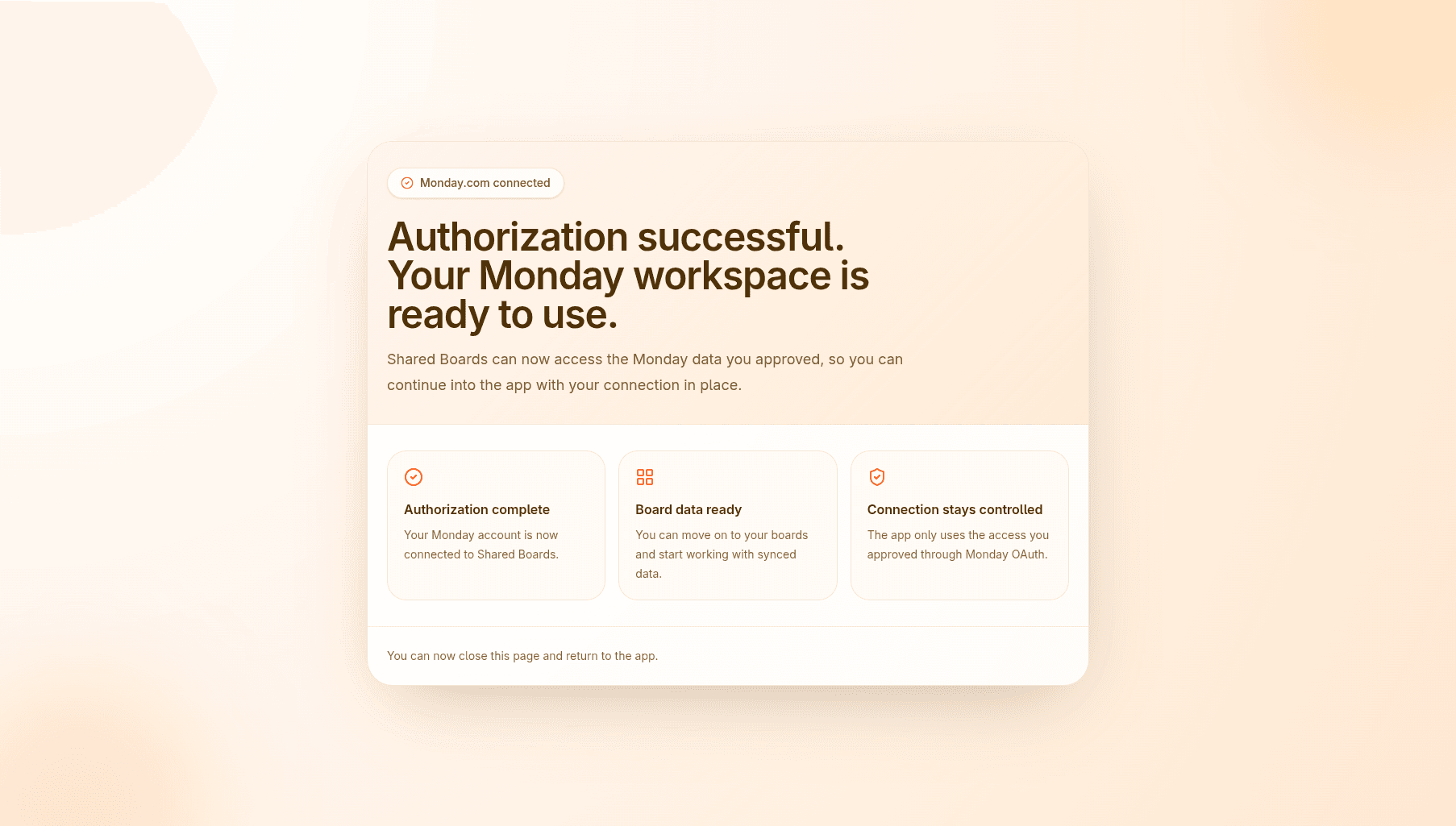
When this is done, you will be redirected to a success page. You can close this page and go back to monday.
Step 3: Enable Sharing
Once the app is authorized, you will see something similar to the following:
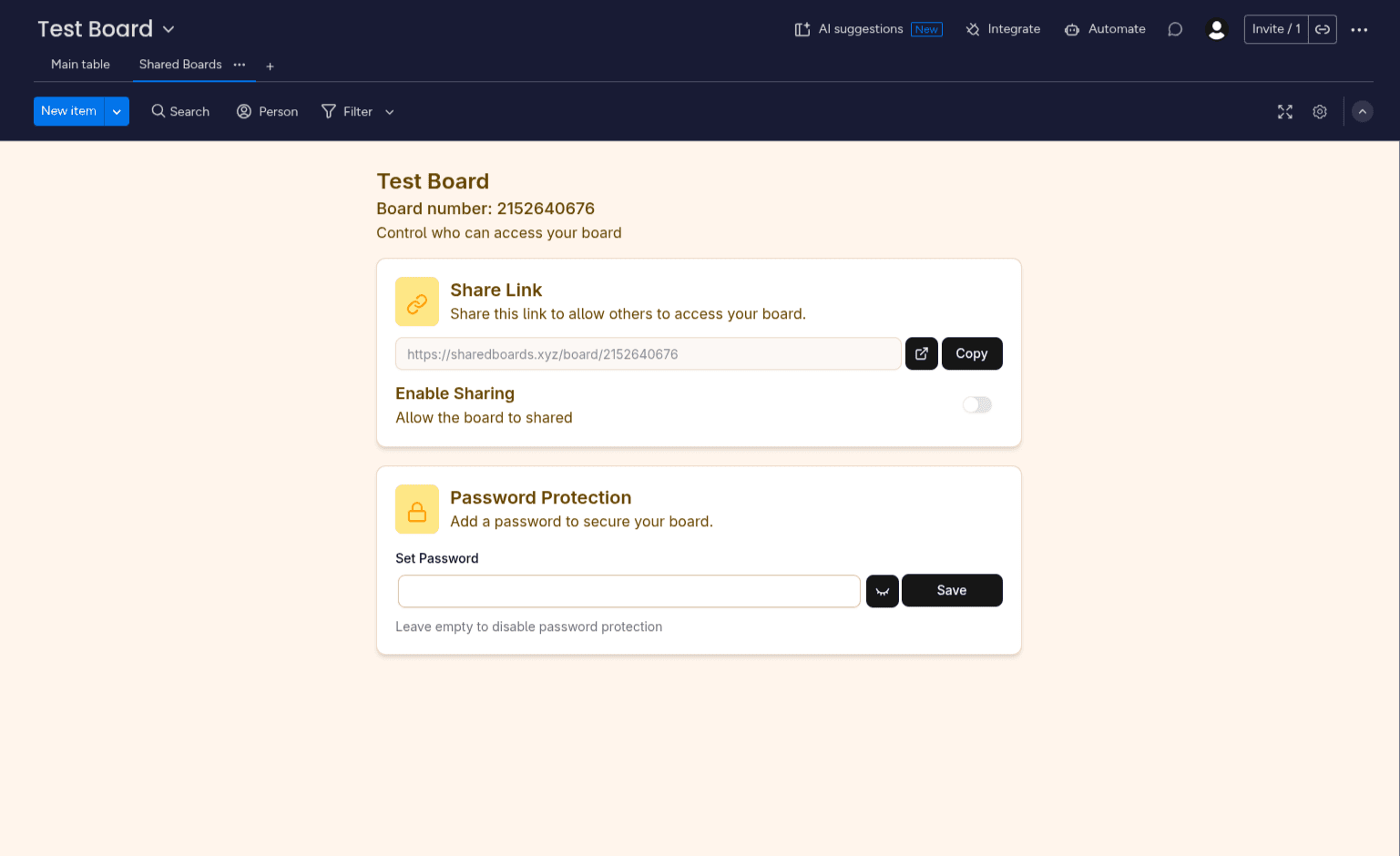
Clicking on the 'Enable Sharing' switch allows you to toggle between shareable and not shareable.
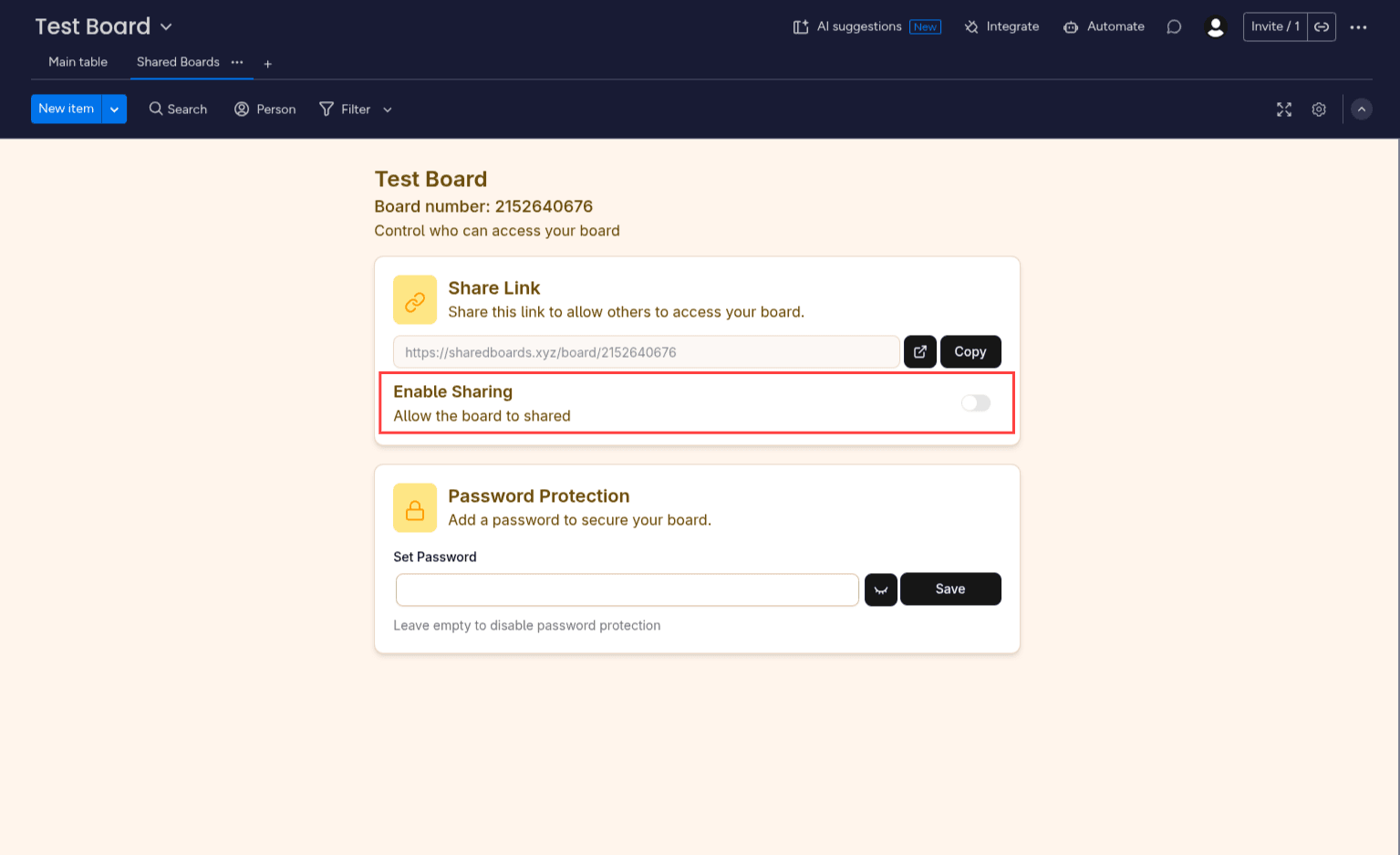
If sharing is enabled, you can use the link to view the board. You can also copy the link to your clipboard so you can send it to whoever needs it.
Optional Step: Set board password
Shared Boards allows you to add a password to your boards. Leaving the password field empty disables password protection on the board.
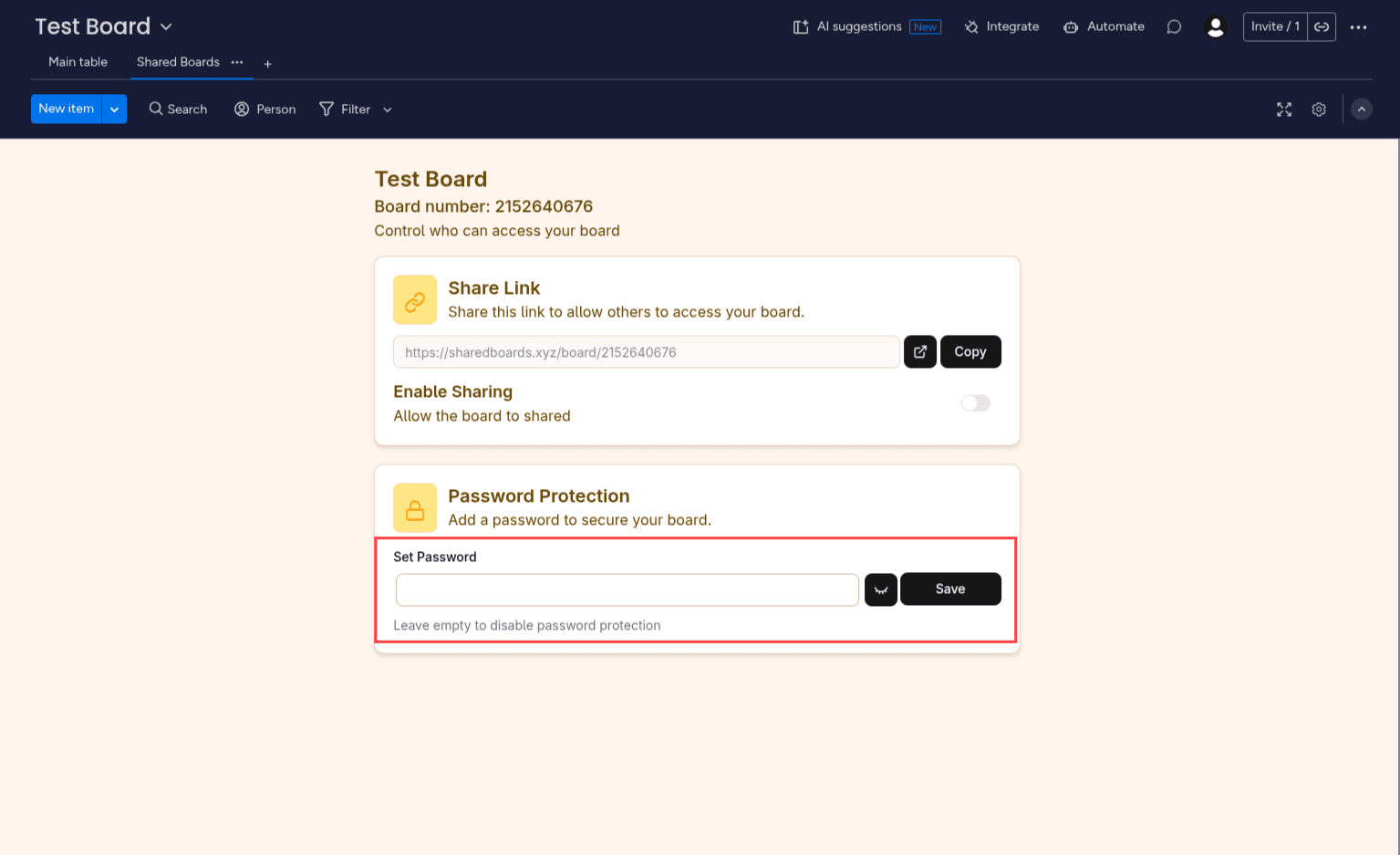
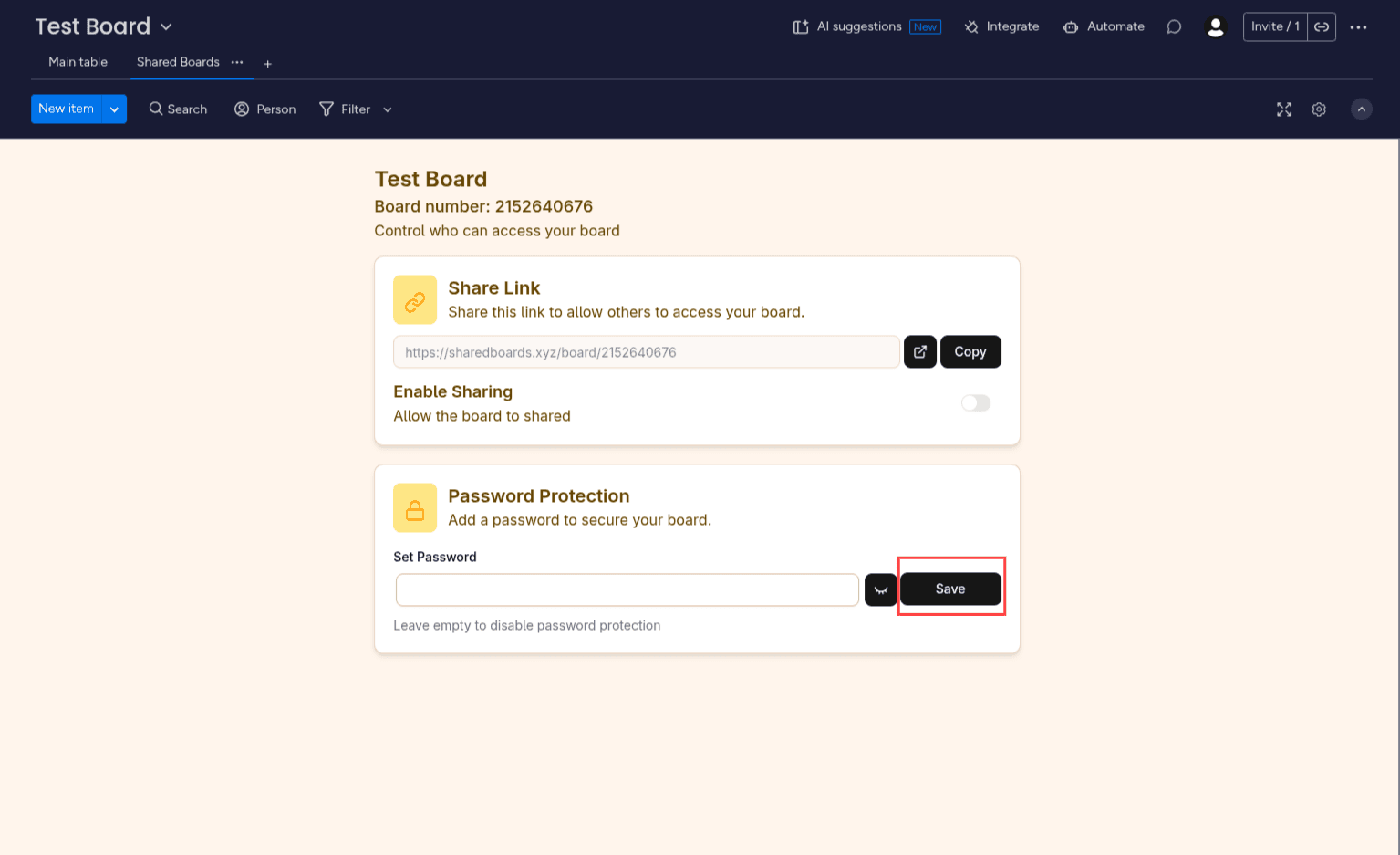
Click on the 'save' button once you want to save the new password.
You can book a hands-on session with a member of our team here.
©2026 sharedboards.xyz